Phones and laptops
Phones and laptops hold everything your team works on. Encryption, location settings, licensed software, and the rules for using personal devices for work.
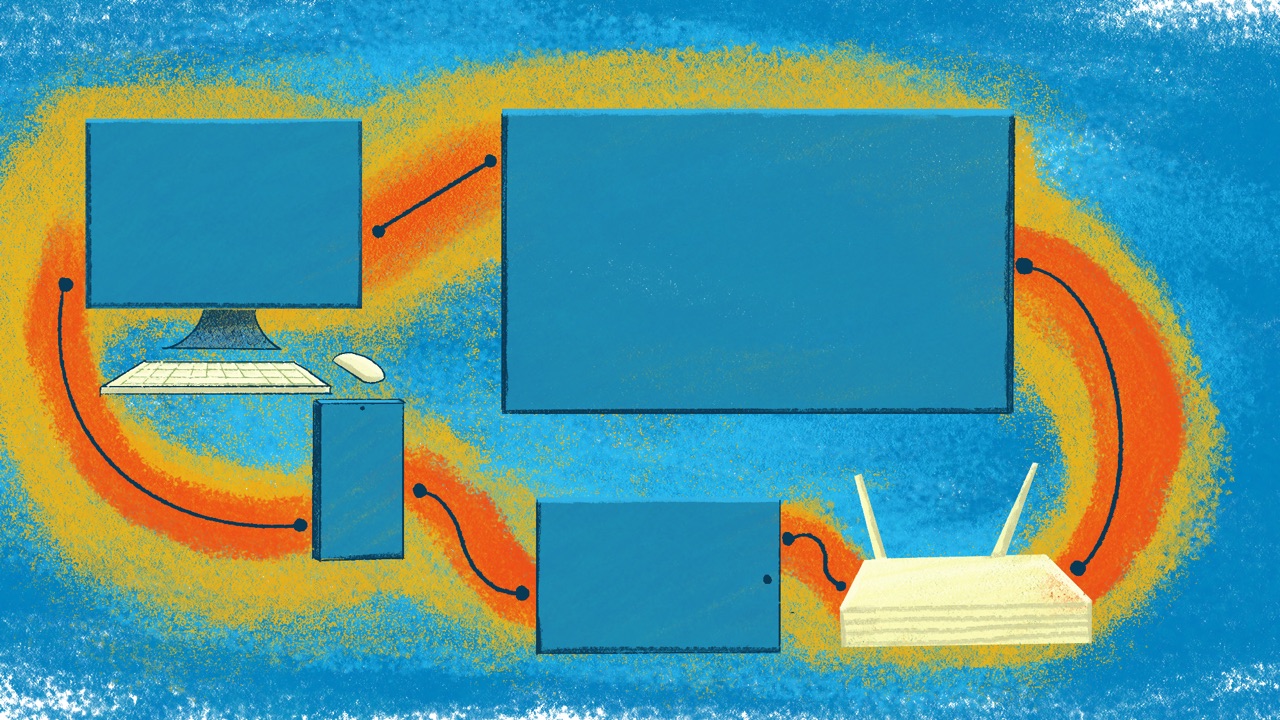
Achieng, a field researcher at a health rights group in Kisumu, records her interviews on her own Android phone. The same phone holds her WhatsApp groups and the organisation’s email. It unlocks with a pattern and shows every new message on the lock screen. Its maker stopped sending it security updates last year. The first two take a minute each to fix. The third needs a plan.
Most teams have phones like Achieng’s. This guide covers the settings that protect any phone or laptop, whoever owns it, and how to bring your colleagues along.
Why your devices come first
Your phones and laptops are where the work lives: messages, files, saved passwords and accounts that stay signed in. If someone gets into a device, by taking it or by putting harmful software on it (programs that spy on you, steal passwords or lock your files), good app settings won’t protect what’s on it. NDI’s handbook for civil society gives an example: software that watches what you type captures private conversations however secure your messaging app is (NDI).
That goes for personal devices too. Attackers go for the easiest target, and that’s often a personal account or a home computer the team also uses for work (NDI). Many of those devices are old. In HURIDOCS’s 2025 study of human rights defenders in the Democratic Republic of the Congo, Kenya, Senegal and Zimbabwe, more than half faced problems such as outdated devices, power cuts, unreliable internet and high data costs (HURIDOCS).
Your team probably uses a mix of phones and laptops, so this guide sticks to habits that work on all of them. For the exact settings, Security in a Box keeps up-to-date guides for Android, iPhone, Windows and Mac.
The basics, on every device
Do these on every phone and laptop that holds work, personal ones included.
- Install updates as soon as they arrive. An update is a new version of the software from its maker, and many fix weak spots that attackers could use to get in. Set the system and your apps to update automatically, and restart when asked, because many updates only finish after a restart. On Android, check the security update date in Settings: some makers send updates months late (Security in a Box).
- Lock the screen, and hide what shows on it. A long passphrase is the safest lock; a PIN should have at least six digits (SIIRF). A pattern can be guessed from the marks fingers leave on the screen, and swipe to unlock isn’t a lock at all (Security in a Box). Set the screen to lock within five minutes and hide message previews, so nobody holding the phone can read what arrives. Fingerprint and face unlock are quick, but someone can force you to use them, so Security in a Box advises against them unless a disability makes typing impossible (Security in a Box).
- Install apps only from the official store, and remove the ones you don’t use. Apps from elsewhere may not have been checked, and every unused app is one more that could have a weak spot or share your location (Security in a Box).
- Check what each app can reach. App permissions are the access you give an app to your location, microphone, camera, contacts, messages and files. Turn off any that an app doesn’t need, and treat an app you don’t recognise that has them as suspicious (Security in a Box).
- Turn off what you’re not using. Switch location off when you don’t need it, and clear the location history your phone keeps: a record of where you’ve been can show where you were and who you were with (Security in a Box). Photos can carry the time and place they were taken, too (Access Now); Deleting data safely shows how to remove these hidden details. Turn off Bluetooth, Wi-Fi and file sharing when you don’t need them, and delete saved Wi-Fi networks you no longer use (Security in a Box).
Encryption
Encryption scrambles what’s stored on a device so it can only be read with the right PIN or password. With it, a lost or seized device gives away far less. The tools used to search seized phones and laptops can open unencrypted disks, short PINs and saved passwords (SIIRF).
- Phones: an iPhone is encrypted as soon as it has a passcode, and most Android phones running Android 10 or later are encrypted by default (Security in a Box). The screen lock is what protects it, so make it a strong one.
- Laptops: most need it switched on. On a Mac, turn on FileVault. On Windows, use BitLocker, which comes with the Pro, Enterprise and Education editions, or the free VeraCrypt where BitLocker isn’t available (Security in a Box). Keep the recovery key in your password manager: lose both the password and the key, and the files are gone too (Security in a Box).
- USB sticks and external drives: they’re easier to lose than laptops, so encrypt them as well, with VeraCrypt or the tools built into Windows and Mac (Security in a Box).
Encryption protects fully only when the device is switched off. A laptop that’s asleep may still give up its files to someone who gets hold of it, so switch devices off before a border, a protest or anywhere they might be taken (Security in a Box; SIIRF).
In some countries encryption is illegal, or draws suspicion in itself. Check before you rely on it; Security in a Box points to a world map of encryption laws to start from (Security in a Box). Where it’s risky, keep less on the device instead.
Laptops and computers
Three more settings matter on a laptop or desktop.
- Do everyday work in an account without admin rights. Keep one admin account for installing software and changing settings, and work in a standard account the rest of the time. If harmful software gets in, it can do less damage from there (Security in a Box; SAFETAG). If colleagues or family share a computer, give each person their own account. Who has access covers admin rights across your accounts.
- Keep the built-in protection on. Windows comes with Windows Security, which includes Microsoft Defender Antivirus, and a Mac has its own protection built in. In most cases they’re enough, so check they’re switched on rather than buying another antivirus (SAFETAG; Security in a Box). Keep the built-in firewall on too; Wi-Fi and networks explains what it does.
- Replace pirated software. Pirated copies of Windows and other programs are common, but they often miss security updates, which leaves them open to known attacks. Move to licensed copies or free open-source programs (SAFETAG). Many nonprofits get discounted licences through TechSoup.
When a device stops getting updates
Phones and computers only get security updates for a limited time. After that, every new weak spot stays open, even if the antivirus still works (Security in a Box).
Windows 10 stopped getting security updates on 14 October 2025. If a computer still runs it, back it up first, then choose one of these (Security in a Box):
- Move to Windows 11. It’s sometimes possible even when Windows says the computer can’t take it, and Security in a Box explains how.
- Pay for Microsoft’s Extended Security Updates, to buy time while you decide.
- Switch to Linux, if you don’t need programs that only run on Windows. Security in a Box suggests Ubuntu, Linux Mint or Debian.
- Replace the computer.
On a phone, find out how long the maker sends updates for your model. When they stop, plan a replacement (Security in a Box; SAFETAG).
Extra protection for people at higher risk
Apple and Google each make a setting for people who might be personally targeted because of who they are or what they do.
Lockdown Mode on an iPhone, iPad or Mac limits the features that the most advanced spyware uses to get in. Apple calls it an extreme protection for the very few people who face that kind of attack, and warns that the device won’t work as it usually does: most message attachments are blocked, for example, and some websites load slowly or break (Apple). Security in a Box goes further:
Lockdown Mode reduces the attack surface for sophisticated spyware like Pegasus. Features of the Lockdown Mode should be used by everyone and should really be part of a standard operating system.
Security in a Box, Front Line Defenders
In practice, offer it to anyone on your team at higher risk and try it together for a week. If a trusted website or app stops working, you can exclude it (Apple).
Advanced Protection does a similar job on Android. One switch turns on Android’s strongest protections: it blocks apps from outside the official store, keeps Google’s built-in app scanning on, locks a phone that seems to have been stolen and restarts one that has stayed locked for three days (Google). It needs Android 16 or later and a screen lock, and some features only work on some phones (Google; EFF). The Electronic Frontier Foundation suggests that at-risk people such as journalists and activists consider it, and it’s easy to switch off again (EFF).
Personal devices used for work
In most small teams, work happens on people’s own phones and laptops. That’s fine, as long as you agree a few rules and write them into your security policies. SIIRF’s Readiness Assessment asks whether you have clear rules for personal devices and USB drives used for work.
Access Now’s policy template for organisations suggests these rules for any device that holds work:
- It has a screen lock, updates and encryption.
- Only its owner uses it. If others share it, confidential work stays off it.
- Work sits on as few devices as possible, ideally one phone and one computer per person.
- USB sticks and drives that carry work are encrypted.
Add one more: when someone leaves, their devices are signed out of work accounts and the work files come off them (Who has access). Where your organisation can afford it, give staff work laptops, so confidential work stays off personal ones (Access Now).
Bringing your team with you
- Start with your own devices, and the director’s. People follow what they see leaders do (Security champions).
- Hold a device check session. Everyone brings their phone and laptop, and you go through updates, the screen lock, encryption and app permissions together, with each device in its owner’s hands. Explain first what you’re looking for, and that what you see on someone’s device stays private unless it shows a security problem (SAFETAG).
- Follow up one to one. Some jobs take longer, such as turning on encryption on an older laptop or setting up Lockdown Mode or Advanced Protection for a colleague at higher risk. If someone’s phone no longer gets updates and can’t be replaced yet, agree what work stays off it.
- Keep a chat open for questions. That way small problems don’t wait for the next session.
- Build it into joining and leaving. A new colleague’s devices get the basics in their first week. When someone leaves, sign their devices out of work accounts and take work files off them (Who has access).
- Check every three months. Look for missing updates and for devices that no longer get them (Checklists and audits).
If it’s already happened
If a phone or laptop is lost or taken, Device lost or seized walks you through the first hours: lock it, and sign it out of your accounts from another device. If police or officials took it, get legal advice before you erase it (SIIRF).
You can prepare now: turn on the features that let you find, lock and erase your phone and laptop from another device, and keep backups so a lost device doesn’t take your work with it (SIIRF).
Teach it to your team
Try this at a team meeting. It takes about 30 minutes.
- Prepare: ask everyone to bring their phone and laptop, charged, and have Security in a Box’s guide for each system your team uses open on your screen.
- Exercise: each person checks four things on their own device: the date of its last security update, how the screen locks, whether storage is encrypted and which apps can see their location. Go round and help, and let people keep their devices in their own hands.
- Three questions: Why does encryption work best when a device is switched off? Which app on your phone can see your location, and does it need to? What would you do if your laptop stopped getting security updates?
- Afterwards: offer one-to-one time to anyone whose device needs more work, and answer questions in the team chat.
More in Devices and Browsing

Travel and border crossings
Preparing phones and laptops before a trip, what to do at a border, and checking devices for tampering when you're back.

Browsing securely
Every site you visit learns something about you. What VPNs, privacy extensions and privacy-protecting browsers do, and when each one helps.
Wi-Fi and networks
Securing the office network, using public Wi-Fi safely, and the basics of firewalls and network monitoring.