Backups
Keeping copies of your files so a stolen laptop, a broken drive or ransomware doesn't wipe out years of work.
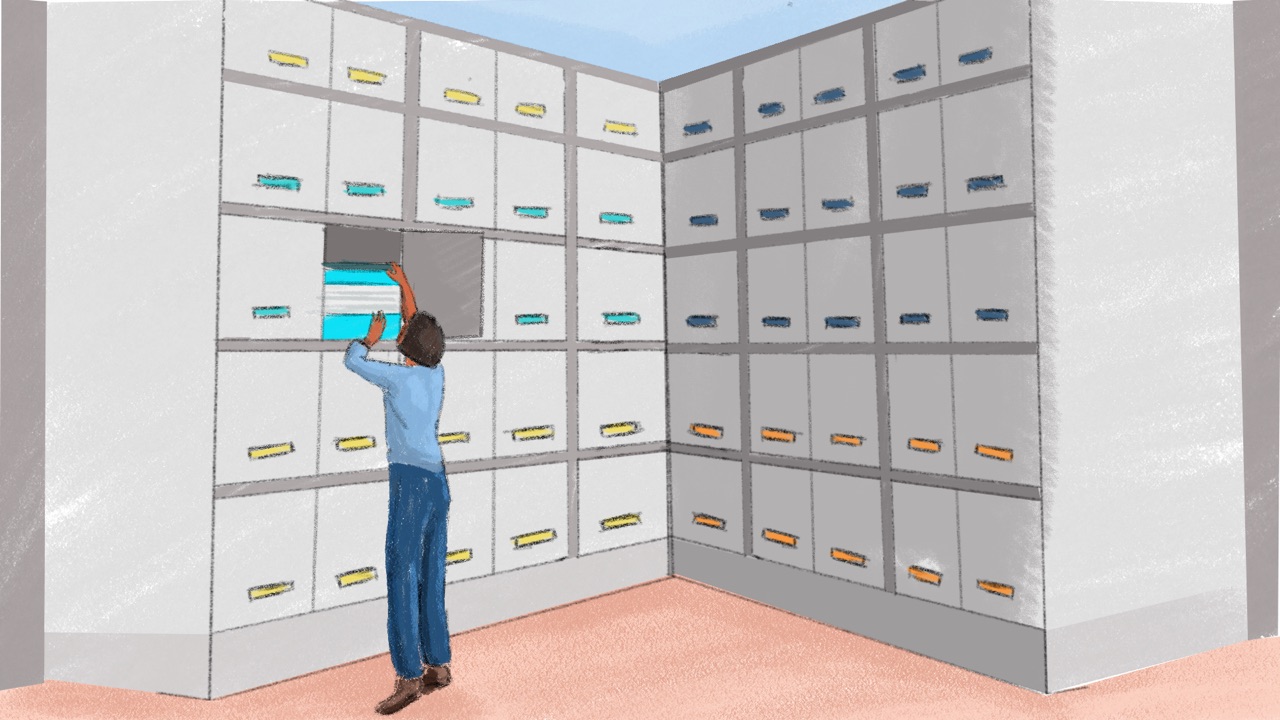
Achieng, a field researcher at a health rights group in Kisumu, records interviews on her own Android phone and uploads them when she gets a signal. Last month the phone was stolen on the way back from a field visit, with three interviews still on it. The organisation’s shared drive was backed up every week. Nobody had thought about the phones.
What a backup is
A backup is a copy of your files kept apart from the original, so you can get them back when the original is lost, stolen, broken or locked. Getting them back is called restoring. Theft, a seizure, a broken drive, ransomware or a forgotten password can each take years of work, and a backup is what brings it back (Security in a Box; SIIRF).
Teams start from different places. Some have nothing planned and some rely on a cloud drive. Others copy files to an external drive now and then, and a few have a routine. A cloud drive keeps files safe when a laptop is lost, but not when someone deletes them by mistake (NDI), or when ransomware spreads to shared drives (SIIRF). If you have nothing yet, start with the plan below. A team that relies on a cloud drive needs an offline copy, and a team with a drive needs to test a restore.
The 3-2-1 rule
Keep three copies of anything important, on two types of storage, with one of them offline or kept somewhere else (SIIRF; Security in a Box). For a small team that could be the files on your laptops, a copy in the organisation’s cloud drive and an encrypted external drive that stays unplugged, away from the office.
The offline copy matters most. Ransomware is harmful software that locks your files and demands payment to unlock them. Once it’s inside, it spreads to shared drives and other devices on the same network (SIIRF). It can’t reach a drive that isn’t plugged in. Distance matters too: a fire that destroys your computers also destroys a backup kept beside them (NDI).
Make a plan
- List what you have and where it lives. Laptops, phones, the shared drive, email, the website and paper such as contracts, invoices and registration documents. Scan or photograph the papers that matter, and back up the scans (Security in a Box).
- Start with what would hurt most to lose: finance records, case files, interviews and contact lists. Who has access helps you sort them by how sensitive they are.
- Decide which copy is the main one. It’s the newest version, the one you’d edit. A spreadsheet updated on a field trip is the main copy until it’s back in the office (Security in a Box).
- Set a schedule, and write down who backs up what. Files that change every day are worth backing up at the end of each day (Security in a Box). Access Now’s policy template asks for a backup at least once a month (Access Now).
- Encrypt every backup. Backups hold your most sensitive files, so encrypt a drive before anything goes on it, and encrypt files before they go to the cloud (Security in a Box; Access Now). Phones and laptops explains encryption.
- Keep an offline copy of your key contacts and incident procedures, printed or on a device that works without the internet (SIIRF).
- Think beyond files. Note your software licences, how you’d replace a lost or seized laptop and where you could work if the office were shut. You can write the cost of recovering from a loss into a grant (Security in a Box).
Old backups keep old files. When you agree how long to keep something (Deleting data safely), that goes for its backups too.
Where to keep backups
- An encrypted external drive, kept unplugged and away from the computer it copies. Ransomware and online attackers can’t reach it, and encryption protects it if it’s lost or taken (Security in a Box; SIIRF). Macs have Time Machine and Windows has its own backup tool, and Security in a Box links the steps for each system.
- A cloud service. It’s automatic and off-site, but the company, and anyone who gets into the account, can read files that aren’t encrypted. Encrypt the files first with Cryptomator, or choose a service the company itself can’t read, such as Proton Drive, Filen or Tresorit (Security in a Box). Sharing files and cloud storage has the questions to ask any provider.
- Phones. An Android phone can back up to a computer, or to Google’s cloud with its built-in tools. An iPhone can back up to a computer, with “Encrypt local backup” ticked, or to iCloud (Security in a Box). Where the signal is poor, copy the phone to an office laptop over a cable when you’re back, and let the cloud copy follow. For WhatsApp, either turn on its end-to-end encrypted backup or turn cloud backup off (NDI; Secure messaging).
If your team keeps its passwords in KeePassXC or another password manager that stores them in a file, back that file up too (Password management).
Practise a restore
A backup you’ve never restored from may not work, so test it (SIIRF; Security in a Box). Restore one file to a new folder, open it and check it’s the version you expected. Do it the first time you set up a backup, before any big update to a computer’s system (Digital First Aid Kit), and then every three months as part of your regular checks.
Bringing your team with you
- Agree the setup together. A drive that moves between the office and a safe place, a cloud service or both, and who looks after each (Security in a Box).
- Start with one or two people. Back up your own laptop and phone first, then the director’s, so others see it working.
- Set it up in a short session. Turn backups on together, then restore one file each so everyone sees it work.
- Help one to one. Phones, old laptops and slow connections take time. Sit with whoever needs it.
- Keep a chat for questions. “Is my phone backed up?” should be easy to ask.
- Fold it into joining and leaving. A new colleague’s devices go on the backup list on their first day. When someone leaves, their files move to the organisation’s storage before their account closes, and any backup drive they kept comes back (Who has access).
- Check every three months. Restore one file, and follow up with anyone whose backups have stopped.
If it’s already happened
A file is missing. Stop using the device first: anything new you save can write over the lost file. Look in the bin or trash, search for it by name and check whether you emailed, shared or uploaded it at some point. If it’s still gone, restore it from your backup. Recovery tools can sometimes bring back deleted files; for sensitive files, ask someone you know and trust rather than a repair shop (Security in a Box; Digital First Aid Kit).
Files are locked and there’s a ransom note. Disconnect the device from the network and Wi-Fi, but leave it switched on. Photograph the note. Don’t plug a backup drive into anything until the device is confirmed clean. Get expert help, and don’t rush to pay: paying doesn’t guarantee your files back, and can mark you as willing to pay. Clean or rebuild the device before restoring from the most recent clean backup, then check the files (SIIRF). Clicked a bad link covers the first hour, and SIIRF’s Ransomware & Malware playbook the full response.
A laptop or phone is lost, stolen or taken. Protect the accounts on it first, with Device lost or seized. Then restore your files to a replacement from the backup.
Teach it to your team
This takes about 25 minutes at a team meeting.
- Prepare: ask everyone to bring the laptop and phone they work on, and have the team’s backup drive or cloud backup ready.
- Exercise: each person names the one file they’d least like to lose, then counts its copies and says where each one is. Does it pass 3-2-1? Then restore one file together from the backup.
- Three questions: Where are the three copies of your most important file? Why does one copy stay unplugged or away from the office? If ransomware locks a laptop, when does the backup drive get plugged back in?
- Afterwards: help anyone whose files fell short, one to one, and keep answering questions in the team chat.
- For a longer session, play level 2 of SIIRF’s Chips Down, which starts with a ransom note on the office computer.
More in Data Security

Sharing files and cloud storage
Choosing where files live, sharing documents safely, and what changes when your data sits on someone else's servers.
Who has access
Sorting your information by how sensitive it is, and deciding who should see what, from someone's first day to their last.

Deleting data safely
Getting rid of files, old devices and paper records so the information on them can't be recovered.