Password management
Getting the whole team onto a password manager, checking whether your logins have leaked in a data breach, and handling account recovery safely.
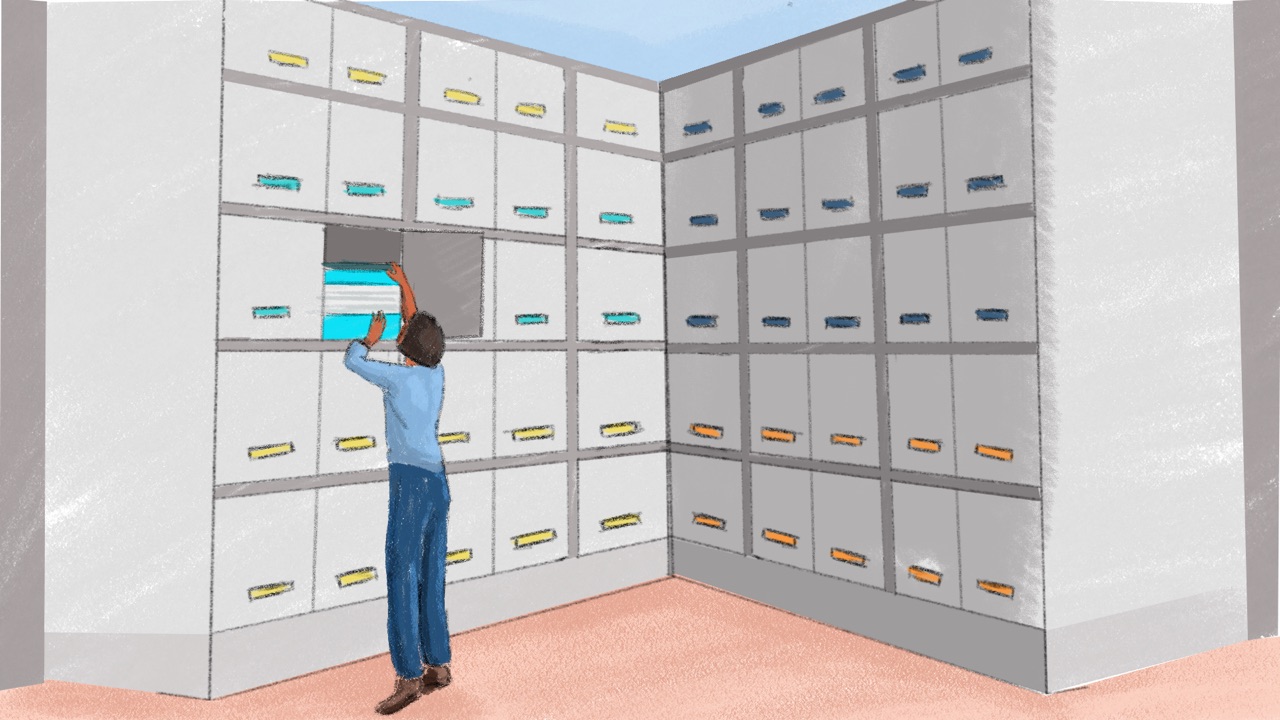
Grace, the finance and admin officer at a women’s rights organisation in Kampala, asks her colleagues where they keep their passwords. One has a notebook in her desk drawer. Two use the same password everywhere, with a different number on the end. The director’s are saved in the browser of the laptop everyone borrows. Nobody is being careless: there are simply too many passwords to remember.
A password manager solves that. This guide covers choosing one, bringing the whole team onto it and checking whether any of your passwords have already leaked.
Why every account needs its own password
When one password guards several accounts, a single leak opens all of them. Attackers collect passwords leaked from one website and try them on others until one works (Security in a Box). NDI’s handbook for civil society organisations calls reuse perhaps the most common password mistake (NDI).
The trouble is that nobody can keep dozens of long, random, different passwords in their head.
No human brain is powerful enough to develop and remember passwords that are sufficiently long, random and unique to keep all of their devices and accounts secure.
Security in a Box, Front Line Defenders
So, as NDI puts it, “everyone has to cheat”, and reusing passwords is the wrong way to do it (NDI). A notebook kept locked away is better than one password everywhere (EFF), but a spreadsheet of passwords on a laptop hands every account to whoever gets into it (NDI).
What a password manager does
A password manager is an app that makes a long, random password for each of your accounts and remembers it for you. It locks them all behind one main password that only you know (EFF; Security in a Box). Some managers, Bitwarden among them, call it the master password. You remember one password, and the manager remembers the rest.
The few you still remember
You still need to know a few passwords by heart: the main password, your email password and the one that unlocks your phone or laptop (EFF). Make them long, and don’t use them anywhere else. For the main password, use a passphrase: a password made of several random words, long enough to be hard to guess and easier to remember than a string of symbols. Use at least six words. People are bad at choosing at random, so let dice and a word list, or the manager’s own generator, pick the words (EFF; Security in a Box).
Practise typing a new passphrase every day at first, then at least once a week (Security in a Box). While you’re still learning it, a paper copy kept somewhere locked is better than forgetting it, but never in your wallet, and destroy it once you know the passphrase by heart (Security in a Box).
Nobody can reset a forgotten main password, not even the company that makes the manager. Bitwarden, for one, says it has no way to see, recover or reset it (Bitwarden), and losing the password to a KeePassXC file can lock it for good (KeePassXC). That’s what keeps your passwords safe from everyone else.
What to set up
- Turn on two-factor for the manager. If your manager keeps your passwords online, protect it with two-factor authentication as well as the main password (Security in a Box).
- Back it up. Losing every password at once can cut you off from your contacts and your money, so back up the password file regularly (Security in a Box). Backups shows how to keep copies and check they work.
- Clear out the browser. Once your passwords are in the manager, delete the ones your browser saved (NDI).
- Make up answers to security questions. The honest answer to “What was the name of your first pet?” can often be found online. Give a made-up answer instead, and save it in the manager (EFF).
- Keep your devices healthy. Harmful software on a phone or laptop can watch you type your main password (EFF). Phones and laptops covers updates and screen locks.
Choosing one for your team
Pick one manager for the whole team, so you can help each other and, later, share logins through it. Small organisations like yours use all three of these kinds, and each can work:
- On your own devices: KeePassXC (for Windows, macOS and Linux), KeePassDX (Android) and Strongbox (iPhone and Mac) are free and open source. They keep your passwords in an encrypted file on your own device rather than on a company’s servers, which is why Security in a Box recommends them first (Security in a Box). Sharing with a team takes more care: everyone uses one shared file and has to be given its passphrase (Access Now).
- Online: Bitwarden is open source, free for individuals and keeps your phone and laptop in step, with paid plans for teams (Access Now). The passwords are encrypted but stored on Bitwarden’s servers, so Security in a Box suggests keeping the most sensitive logins, such as bank accounts, out of it and protecting it with two-factor (Security in a Box).
- Paid: 1Password is a commercial online manager with features for teams (Access Now).
To choose, think about how your team works. If most people work on their phones, the manager has to work well there. If you’ll share logins, an online manager makes that easier (Access Now). If nobody needs to share and your work is high risk, an offline one keeps the file in your hands (Security in a Box).
Whichever you choose, don’t keep work passwords in the browser. A browser’s “save this password” button isn’t the same as a password manager (NDI), and Security in a Box calls it generally less secure (Security in a Box). If a phone or laptop is taken or searched, passwords saved in its browser put much more at risk.
Bringing your team with you
- Choose together. Agree as a team which manager you’ll use, and why, before anyone installs anything. People may not welcome a plan that was decided without asking them (Holistic Security).
- Go first, with your director. Use it yourselves for a week or two, so you can answer questions and colleagues see it in use. Security champions has more on getting your director on side.
- Set it up in a short session. Install it together, help each person create their main passphrase and move their email password in first, since most other accounts can be reset through email (EFF). Then move the rest in one account at a time over the following weeks, changing each to a new random password as you go. KeePassXC’s getting started guide and Bitwarden’s help pages walk through the setup.
- Help one to one. Sit with anyone who gets stuck, and keep a team chat open for questions.
- Expect the usual snags. Some people install it but never move their passwords in. Someone forgets their main password, or an old phone runs out of storage or data. Some colleagues see it as extra work. Most of all, people need to hear clearly why you’re doing it, what to do and by when. Check in with everyone a week after the session.
- Make it part of joining and leaving. A new colleague gets the manager in their first week. When someone leaves, remove them from anything shared and change every shared password they knew (NDI). Shared accounts covers the details.
- Check every three months. Is everyone still using it? If your manager can list weak or reused passwords, go through the list together (NDI). Checklists and audits has the rest of the quarterly check.
Checking for leaked passwords
A data breach is when information a website or company holds about its users gets out, often including email addresses and passwords, through an attack or a weakness in its systems (Have I Been Pwned). Leaked passwords end up on the lists attackers use to try their luck on other accounts (Security in a Box).
Have I Been Pwned lets you check:
- One address: search an email address to see which known breaches include it, and sign up for an email if it turns up in a new one. Alerts only go to the address being watched, so each person signs up for their own (Have I Been Pwned).
- Your whole domain: if your organisation has its own email domain (the part after the @, explained in Email security), you can check every address on it once you’ve proved it’s yours. Larger domains need a paid subscription (Have I Been Pwned).
If an address shows up, change the password for that account and for every other account that used the same one, then turn on two-factor (Security in a Box). An address that isn’t listed may still have leaked: many breaches are never made public, and some are never even noticed (Have I Been Pwned).
Recovery, before you need it
When a password is lost, most accounts let you back in through a recovery email address or phone number. Check that each one is current and belongs to someone who still works with you. In many of the cases where Access Now’s helpline helped people get an account back, those details were missing or out of date, which made recovery much harder (Access Now).
- Save each account’s recovery details, and your made-up security answers, in its entry in the manager.
- Save the backup codes you’re given when you turn on two-factor. Two-factor authentication explains where to keep them.
- Plan a way back into the manager itself. Bitwarden’s paid plans let you name a trusted emergency contact who can ask for access to your vault (Bitwarden). With an offline manager, the locked-away paper copy is the way back while you learn the passphrase.
If it’s already happened
- Someone forgets their main password: try the manager’s own ways back first. Bitwarden lists several, from a password hint to a device that’s still signed in (Bitwarden). If none works, the vault is gone. They’ll start a new one and reset each account’s password through its recovery email or phone, which is why those details need to be current.
- A phone or laptop with the manager on it is lost or taken: the manager stays locked behind its main password, but follow Device lost or seized. If anyone may have watched the owner type the main password, change it (Security in a Box).
- Someone else is in an account: follow Account taken over.
Teach it to your team
A 30-minute session, best run soon after you’ve chosen the manager.
- Prepare: use the manager yourself for a week first. Ask everyone to bring the phone or laptop they work on, charged, and to know their email password. Seat people so nobody can see another person’s screen while they type a passphrase (Security in a Box).
- Exercise: everyone installs the manager, creates a six-word passphrase with its generator and saves their email account in it. Finish with each person locking the manager and opening it again with the passphrase.
- Three questions: Why does one leaked password put your other accounts at risk? Which passwords do you still need to remember? Who can reset your main password if you forget it?
- Afterwards: check in with each person a week later, help anyone who’s stuck one to one and keep answering questions in the team chat.
More in Account Security

Two-factor authentication
Adding a second step to your logins, so a stolen password alone isn't enough to get in.
Social media accounts
Keeping control of the accounts your organisation speaks through, including the ones several people log in to.

Shared accounts
Logins several people use, like the organisation's social media or a fundraising platform, shared safely and taken back when someone leaves.