Email security
Running your organisation's email safely: choosing a provider, keeping work and personal email apart, and recognising common malicious emails.
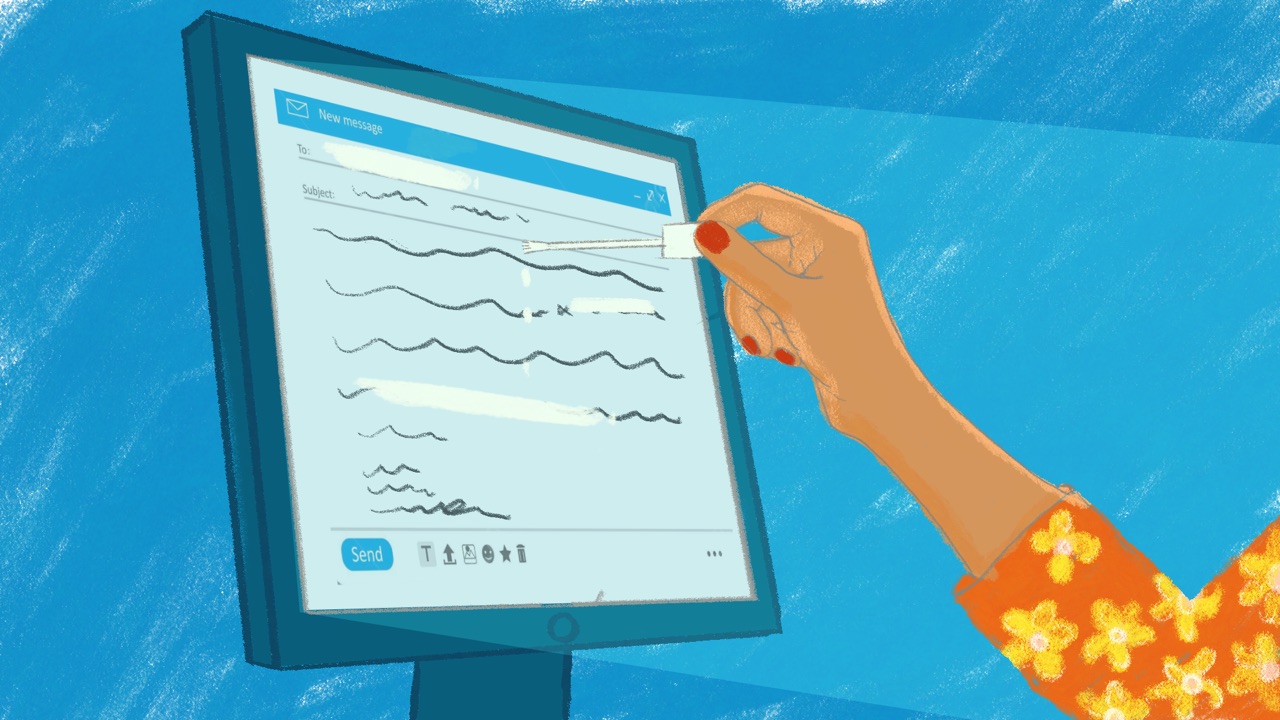
Farhana is the programme lead at a labour rights network in Dhaka, and the person colleagues ask when email goes wrong. When a colleague left last year, three years of messages with partner unions went with her: she had used her personal Gmail for work. Then Farhana asked for an account for a new colleague and found that the IT company that set up the network’s email still held the only admin account. Both came from the same gap: nobody had decided how the network’s email should be run.
Why email matters
Your email is the key to most of your other accounts. Most services let you reset a password by email, so whoever gets into an inbox can reset their way into the rest (EFF).
It also holds years of contacts, files and conversations, and by default it isn’t encrypted. Messages sit readable on your provider’s servers and on every device that has downloaded them, so anyone who gets into one of those can read them (Security in a Box). And it’s where phishing (messages that trick people into handing over a password, a code or money), harmful attachments and other attacks often arrive (Security in a Box).
Work and personal email apart
Give everyone an email account that belongs to the organisation, and keep work out of personal accounts. NDI’s handbook for civil society organisations is firm that staff shouldn’t use personal email for work. With accounts the organisation runs, you can require strong passwords and two-factor authentication for everyone (NDI). When someone leaves, their mail can pass to a colleague, and the organisation decides when the account closes (Access Now).
Personal accounts still need the same care. Access Now’s policy template asks staff to keep their personal email and social media as secure as their work accounts, because what happens at home affects work (Access Now).
Choosing an email provider
Your email provider is the company or group that runs your email, such as Google, Microsoft or Proton. Small teams use every kind, and this guide works for all of them.
Don’t run your own email server. NDI advises against it, and for most organisations a managed service such as Google Workspace or Microsoft 365 is a good choice, as long as you’re comfortable that the provider itself can read your mail (NDI). Where it shouldn’t be able to, Proton Mail and Tuta both offer plans for organisations (NDI). They encrypt mail end to end between their own users, so only the people writing to each other can read it (Secure messaging explains how that works). A message to someone on another provider isn’t protected that way unless you set a password for it (Security in a Box).
Whichever you’re considering, ask (Security in a Box):
- Where is the provider based, where are its servers, and would it hand your data to the authorities in your own country if they asked?
- Does it publish transparency reports, and how has it answered requests from authorities before?
- Does it offer two-factor authentication?
- If it’s free, how does it make money?
A mainstream address can draw less attention than one from a provider mostly used by activists. The trade-off is that a commercial provider may hand your data to the authorities during an investigation (Security in a Box).
Cost needn’t decide it for you. Google for Nonprofits offers Workspace to registered charities in many countries, though not every product is available everywhere (Google), and many groups get donated or discounted software through TechSoup.
What to set up
These are for whoever looks after your email: you, a colleague or an IT company.
- Turn on two-factor for every account, admins first. On Google Workspace and Microsoft 365, an admin can require it for everyone (Google; Microsoft). Two-factor authentication explains which kind to choose.
- Keep recovery details current. Check that every account’s recovery email and phone number still work. In many of the cases where Access Now’s helpline helped people get an account back, those details were missing or out of date, and that made it much harder (Access Now).
- Hold the top admin account yourselves. The account that controls all the others should belong to the organisation, not to an outside company or one person. Give it to two trusted people, each with current recovery details. An IT company that keeps it can get into your email or lock you out of it (Access Now).
- Close accounts nobody uses. Go through the list of accounts. Suspend or close those of people who have left and any that have gone quiet, and check who has admin rights (Access Now).
- Check what else can read the mail. Look for settings that forward mail somewhere else, and for apps that have been given access to accounts. Remove anything nobody recognises: both are signs that someone else has been in the account (SIIRF).
- Keep a copy. Back up the mailboxes you couldn’t work without, so a lost account doesn’t take years of work with it (Security in a Box). Backups shows how.
Look after your domain
Your domain is your organisation’s name on the internet: the part of an email address after the @, as in yourorganisation.org. It’s registered through a company called a registrar and has to be renewed. If it lapses, or ends up in the wrong hands, the email and website that use it can stop working. Access Now’s helpline suggests (Access Now):
- Register it in the organisation’s name, not one person’s. If the only person allowed to renew it is away or has left, everything can stop.
- Turn on automatic renewal.
- Keep it with a different company from the one that hosts your website, so trouble at one doesn’t cost you the other.
- Choose a registrar that keeps the owner’s name and email private.
- Where the authorities can pressure local companies, choose one outside the country.
Protect the registrar account with two-factor too. Then ask whoever set up your email whether two settings on the domain, called SPF and DKIM, are switched on. They let anyone who receives an email from your domain check that it came from a server you allow, and that nobody changed it on the way (Digital First Aid Kit).
What to keep out of email
Even a well-run mailbox isn’t the place for your most sensitive conversations. Email shows who wrote to whom and when, and sometimes the subject line, even when the message itself is encrypted (Security in a Box). For names of sources, case details and anything that could put someone at risk, NDI recommends a messaging app such as Signal instead (NDI). Secure messaging helps you agree which channel is for what.
- Keep sensitive details out of subject lines (Access Now).
- Think about who you’re writing to. For a partner at risk, an email from your organisation’s address can itself draw attention to them (Access Now).
- Share sensitive files through a folder only the right people can open, not as attachments (NDI). Sharing files and cloud storage shows how.
Spotting forged email
The name on an email, and even the address, can be faked. A colleague’s hacked account can send messages that look completely real. What usually gives it away is a request that’s out of character, so check with the sender another way before you act on anything unusual (Digital First Aid Kit).
Phishing shows the other signs, and a simple rule for any request to move money.
Bringing your team with you
- Start with your own account and your director’s. Leaders who switch first set the example for everyone else (NDI).
- Agree the changes and a date. Tell everyone what’s changing, why and when it starts. If two-factor is becoming required, give people a week or two to turn it on first, so nobody is locked out by surprise (Google; Access Now).
- Set it up together. In a short session, everyone turns on two-factor and checks their recovery details. Afterwards, help anyone who got stuck one to one, including anyone with an older phone.
- Move work out of personal accounts, one team at a time. Start with the people whose mail matters most, such as finance and whoever talks to partners.
- Keep one place for questions. Open a team chat where anyone can ask about the changes without waiting for the next meeting.
- Write down what happens when someone joins or leaves. A new colleague gets an account with two-factor on their first day. Someone leaving sets an out-of-office saying who to contact and forwards their mail to a colleague, and the account stays open for two or three months before it’s closed (Access Now). Who has access covers the rest.
- Check every three months. Look at the list of accounts, who has admin rights, who has two-factor on, and any forwarding or app access nobody recognises. Checklists and audits has the full rhythm.
If it’s already happened
If someone else is in an email account, follow Account taken over, and win back the email before any other account. If someone clicked a link or opened an attachment, see Clicked a bad link.
Teach it to your team
Try this at your next team meeting. It takes about 20 minutes, and everyone needs the phone or laptop they read work email on.
- Prepare: ask people to have their password manager to hand, and find the security page for each email provider your team uses.
- Exercise: everyone opens their email account’s security page and checks three things together: two-factor is on, the recovery email and phone number are current, and the list of devices signed in shows nothing they don’t recognise. Sign out anything unknown.
- Three questions: Why does email get two-factor before any other account? Where do our most sensitive conversations happen instead of email? An email from a colleague asks you to send a file urgently; what do you do first?
- Afterwards: help anyone who got stuck one to one, and remind people that the team chat is there for questions.
More in Communication Security
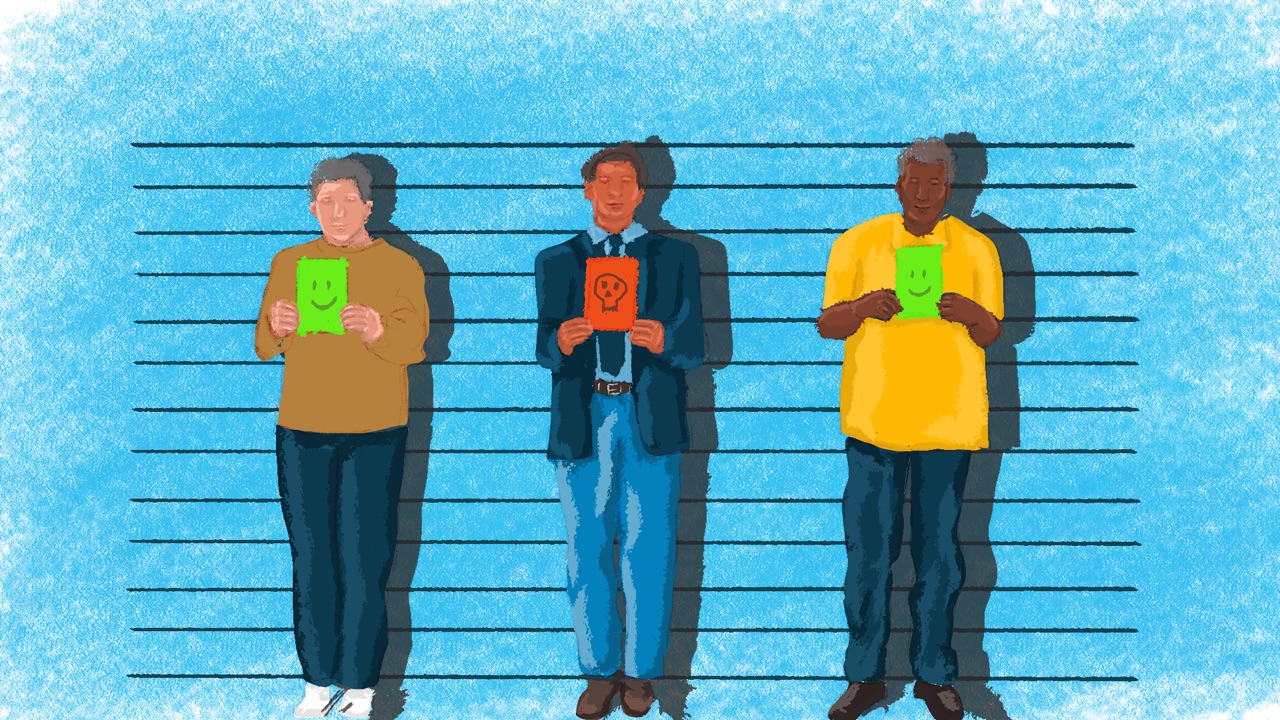
Phishing
How to spot a phishing message before anyone clicks, and what to do if someone already has.

Secure messaging
Choosing messaging apps for sensitive conversations, and what your messages reveal even when their content is encrypted.
Video calls
Running sensitive meetings over video, from choosing a tool to keeping uninvited people out and deciding what gets recorded.