Video calls
Running sensitive meetings over video, from choosing a tool to keeping uninvited people out and deciding what gets recorded.
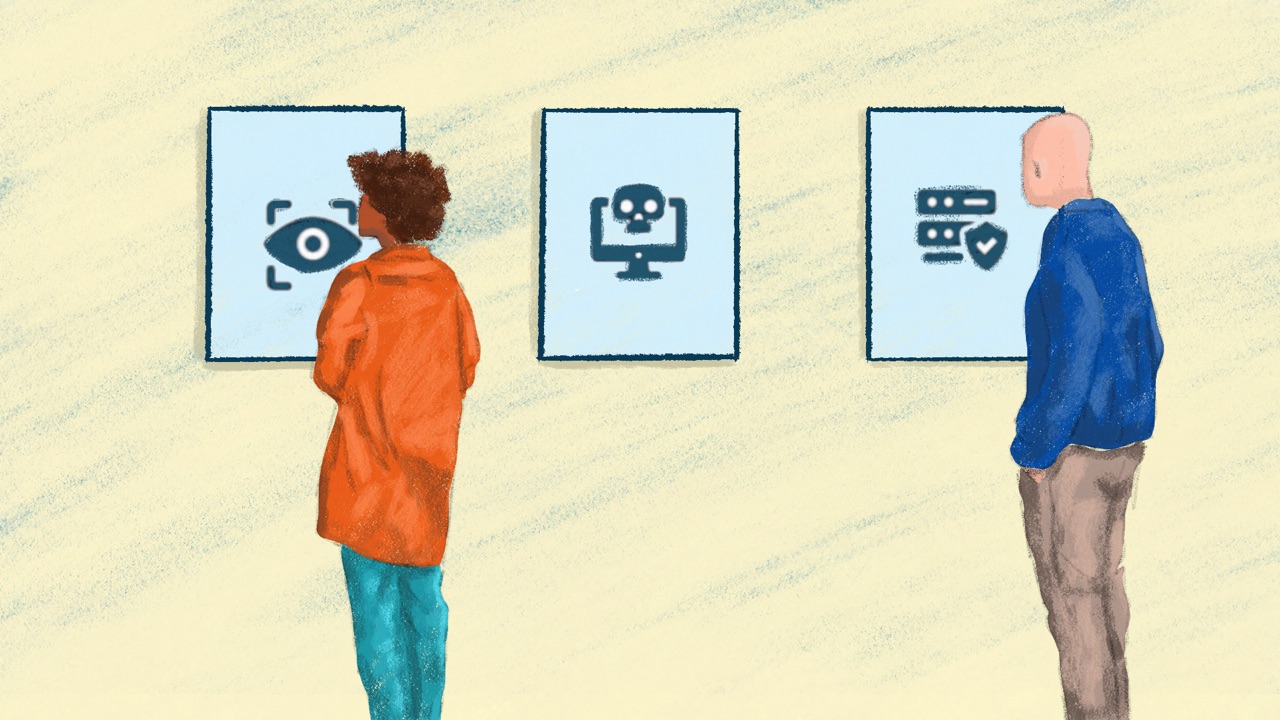
Farhana, the programme lead at a labour rights network in Dhaka, runs online trainings for organisers at partner unions. At the start of one session she counts 14 names on the screen for 12 invited people. One is a participant who has joined twice, from a phone and a laptop. The other is an AI note-taker that a partner’s calendar has sent along on its own, ready to record and summarise a session about organising safely.
Both are easy to catch with the right settings and a host who checks who’s there.
Why calls need care
Since the pandemic, video calls have been part of everyday work. In 2020, about one in five of the pandemic-related requests to Access Now’s helpline were about them (Access Now).
A call can be joined by someone who wasn’t invited, recorded without everyone knowing, or heard by whoever runs the platform. Most video tools for larger groups don’t encrypt calls end to end, so the company running the servers can get at them (Security in a Box). Secure messaging explains what end-to-end encryption does.
Choosing a call tool
Most teams already use Zoom, Google Meet or Microsoft Teams, and those are fine for everyday and public meetings. For sensitive ones, it depends on the size of the call and what your team already has:
- One person or a small group: a Signal or WhatsApp call, which is end-to-end encrypted by default. Signal’s group calls take up to 50 people (Security in a Box).
- A larger sensitive meeting: end-to-end encryption is almost never available for big group calls, so use a platform on a server run by your organisation or someone you trust deeply (Security in a Box). Jitsi Meet and BigBlueButton are built for this, but only on a server whose hosts you know, and Nextcloud Talk offers end-to-end encrypted calls (Security in a Box).
- Zoom, Meet or Teams, when that’s all you have: know the limits before you start. Zoom’s end-to-end encryption isn’t on by default, works only when everyone joins through the app rather than by phone, and turns off some features, such as cloud recording (NDI). Teams needs a Teams Premium licence for the organiser of an end-to-end encrypted meeting, and recording and live captions stop working once it’s on (Microsoft). By default, Meet encrypts calls between your device and Google, which protects them on the way but not from Google itself (Google; NDI).
Whatever the tool, ask who runs the servers, whether calls are end-to-end encrypted, who can record and where recordings and transcripts end up (Security in a Box; Freedom of the Press Foundation).
Keeping uninvited people out
- Send the link only to the people invited. Never post it publicly, and if you share a screenshot of a meeting, cut out the address (Google).
- Turn on the waiting room. A waiting room holds anyone who isn’t on the invite until the host lets them in. In Google Meet, people who aren’t invited have to “knock”, and only the host can admit them (Google).
- Add a passcode. NDI suggests a strong passcode for any sensitive meeting, and a random meeting name on Jitsi (NDI).
- Have a host who knows the controls. They admit people, and can mute or remove anyone who shouldn’t be there (Google).
- Check who’s there at the start. A name on the screen is easy to fake, so if you don’t recognise someone, ask them to confirm who they are another way (Security in a Box).
Recordings, transcripts and AI note-takers
An AI note-taker is a tool that records a call and writes up a transcript or summary. Some are built into the call tool, like Google Meet’s note-taking feature (Google), and some are separate services that join the call as an extra participant.
Decide before the meeting whether it will be recorded, transcribed or summarised, and tell everyone. For sensitive meetings, the answer is no.
We recommend avoiding transcription altogether if your audio, in the wrong hands, could put people at risk.
Martin Shelton and Yael Grauer, Freedom of the Press Foundation
Transcription services usually have access to the audio and the transcript. Some use recordings to train their AI, and none of the services Freedom of the Press Foundation looked at publishes a transparency report showing how often it hands data to the authorities (Freedom of the Press Foundation). So:
- Switch AI note-takers off for sensitive meetings, and remove any that join without an invitation.
- If you need a record, take notes yourself (Security in a Box).
- If you must transcribe something sensitive, do it on your own device. Some phones can now transcribe without sending the audio anywhere (Freedom of the Press Foundation).
Safe habits on calls
- On Signal and WhatsApp calls, turn on the setting that relays calls, so the other person can’t see your internet address (Secure messaging has more on call settings).
- Keep training and planning calls private: agree with everyone not to post who took part (LevelUp).
- On public Wi-Fi, see Wi-Fi and networks before you join a sensitive call.
- When the room itself may not be private, Spyware and surveillance covers safer meetings.
Bringing your team with you
- Agree which tool for which meeting. Signal for small sensitive calls, a trusted platform for larger sensitive meetings and the usual tool for everything else. Add it to your security policies.
- Set safe defaults once. In the organisation’s account, turn on waiting rooms and passcodes, and turn off recording and AI note-takers unless a host switches them on.
- Try it with one or two colleagues first. Run a test meeting with the new settings, and check that end-to-end encryption shows as on before you rely on it (NDI).
- Brief everyone who hosts. Run a short session on admitting, muting and removing people, and on checking names at the start.
- Help one to one. Sit with anyone who hasn’t hosted before, ahead of their first sensitive meeting.
- Keep one place for questions. The team chat works for “is this tool all right for this call?”
- Fold it into joining and leaving. New colleagues learn the meeting rules in their first week. When someone leaves, take away their host rights and send new links for recurring sensitive meetings.
- Check every three months. Make sure the defaults are still set, and that nobody has connected a note-taker to a work calendar. Checklists and audits has the rhythm.
If it’s already happened
If someone joined who shouldn’t have, or a sensitive meeting was recorded without everyone agreeing, treat it as an incident. Tell your incident lead, and write down what was said and who may have heard it (Your incident response plan). If an account used to host calls has been taken over, follow Account taken over.
Teach it to your team
Try this at your next team meeting, on the call tool you use most. It takes about 20 minutes.
- Prepare: a test meeting with the defaults you want, and one colleague who knows to join late under a made-up name, with everyone told it’s an exercise.
- Exercise: take turns as host: admit people from the waiting room, spot and remove the made-up name, and find the recording and AI note-taker settings and switch them off.
- Three questions: Who can let people into our meetings, and how? Who decides whether a meeting is recorded? Which tool do we use for a sensitive call with a partner?
- Afterwards: help anyone who hasn’t hosted before, one to one, and keep the team chat open for questions. Training your team has more on running sessions like this.
More in Communication Security

Email security
Running your organisation's email safely: choosing a provider, keeping work and personal email apart, and recognising common malicious emails.
Phishing
How to spot a phishing message before anyone clicks, and what to do if someone already has.

Secure messaging
Choosing messaging apps for sensitive conversations, and what your messages reveal even when their content is encrypted.