Wi-Fi and networks
Securing the office network, using public Wi-Fi safely, and the basics of firewalls and network monitoring.
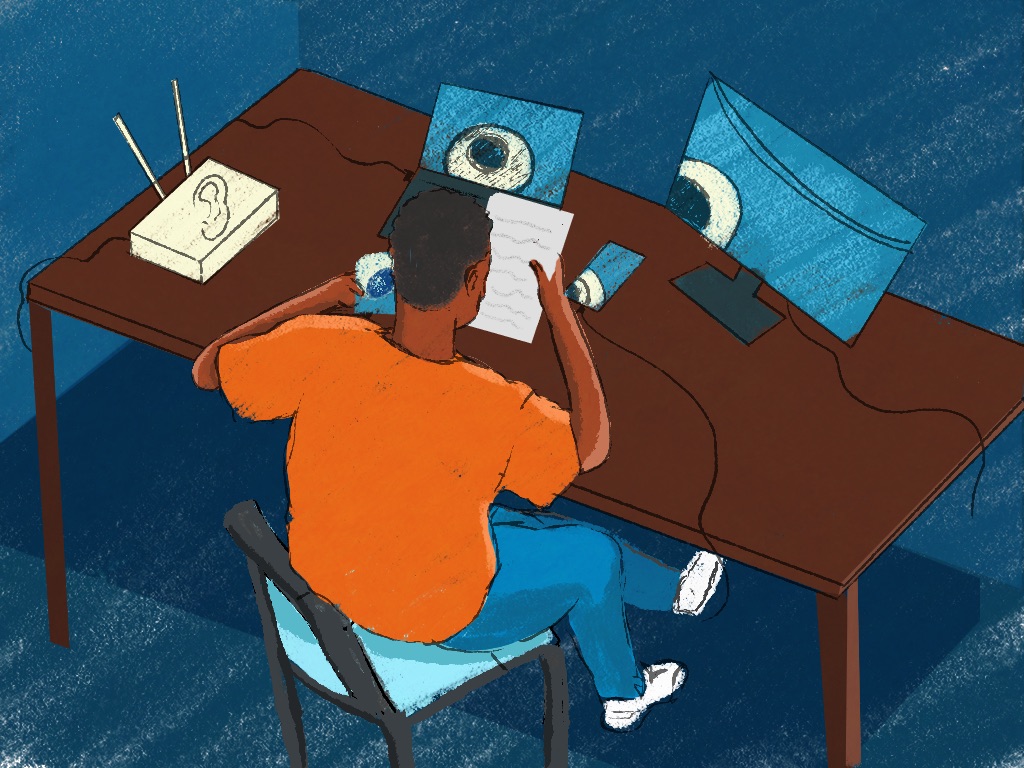
Achieng, a field researcher at a health rights group in Kisumu, uploads her interview recordings over the office Wi-Fi when she gets back from the field. The Wi-Fi password hasn’t changed in three years, so former interns and most past visitors still have it. The router’s own admin password is the one printed on the sticker underneath. Nobody chose any of this. It’s how the router came out of the box.
This guide covers the office network and whoever looks after it, then what to do on networks you don’t control.
Why the network matters
The router is the box that connects your office to the internet, and it usually runs the Wi-Fi too. Everything your team does online passes through it. Someone who gets onto the network can try to read what crosses it, and someone who gets into a router left on its factory settings can quietly change it to send your traffic to them. Changes like that can go unnoticed for a long time (SAFETAG).
Office networks are often shared with visitors (SAFETAG), and Wi-Fi reaches beyond the office walls (SAFETAG). So the Wi-Fi password, the one people type to join the network, protects more than it seems to.
Who looks after your router
- An outside IT provider: send them the steps below and ask them to confirm each one. Keep a copy of the router’s admin password in your organisation’s password manager, not only theirs.
- Someone on staff, often you: the steps take an afternoon.
- Nobody, because there’s no office: the same steps apply to the home routers people work from (Access Now).
Set up the office router
You’ll find these settings on the router’s admin page, which its manual or sticker tells you how to open.
- Change the admin password, and install updates. Many routers still use their default admin password, and the defaults are listed online for anyone to look up. Change it, and save the new one in your password manager. Check for updates to the router’s software while you’re there: SAFETAG’s auditors check routers for software that hasn’t been updated (SAFETAG).
- Use WPA3, or WPA2, with a long Wi-Fi password. These are the settings that encrypt your Wi-Fi. Older settings such as WEP, and filtering by device address, don’t protect anything. Make the Wi-Fi password at least 12 random characters, or five or more uncommon words, with nothing linked to your organisation (SAFETAG). If the router can’t do WPA2, replace it (SAFETAG).
- Switch off WPS PIN entry. WPS lets a device join with an eight-digit PIN instead of the password, and an attacker in range can always break that PIN, usually within hours. Leave it off, or turn it on only while you add a new device (SAFETAG).
- Turn on the router’s firewall. A firewall decides which connections can come in and go out, and blocks the rest. Most routers have one built in (NDI), and so do Windows and Mac computers; keep those on too (Phones and laptops).
- Set up a guest network for visitors. A guest network is a separate Wi-Fi network with its own password. It gives visitors the internet but keeps them away from your devices and shared files. Its password ends up on whiteboards and in emails, so change it regularly (SAFETAG; NDI).
- Change the Wi-Fi password when someone leaves. Changing it now and then keeps the network to the people who should be on it (NDI).
SIIRF’s Readiness Assessment asks whether your office Wi-Fi has a strong password and separate guest access, so these steps also close one of its gaps.
Networks you don’t control
Treat Wi-Fi in cafés, hotels, airports and conferences as watched. Someone else runs it, and anyone within range may be listening (Security in a Box; EFF).
- Keep HTTPS-only mode on in your browser. It stops people on the network reading what you type into sites and which pages you open (Browsing securely).
- Use a trusted VPN. Most sites already use HTTPS, so a VPN matters less on public Wi-Fi than it used to, but on a network you don’t trust it also hides which sites you visit (EFF). It isn’t a complete shield: a known weakness lets whoever controls a network route traffic around the VPN, so HTTPS-only mode still matters (Security in a Box).
- Stop at certificate warnings. If your browser warns that a connection isn’t secure, don’t carry on: it can mean someone is getting between you and the site (Security in a Box).
- Turn Wi-Fi off when you don’t need it, and forget old networks. A phone with Wi-Fi on keeps calling out the names of the networks it remembers, and that list can identify you and show where you’ve been. Switch off settings that turn Wi-Fi on by themselves (Security in a Box).
Watching the network itself
Spotting an intruder on a network takes tools and skills most small teams don’t have. If you need that kind of check, a trained auditor can test your network as part of a SAFETAG-based audit.
Bringing your team with you
- Do the router in one afternoon. Work through the six steps yourself, or send them to your IT provider and keep the admin password in your password manager.
- Share the new Wi-Fi password carefully. Tell colleagues in person or in your secure team chat, and give visitors only the guest password.
- Cover public Wi-Fi with the team. Run the session in “Teach it to your team” below, or send a short note on HTTPS-only mode, the team’s VPN and what to do about a browser warning. SIIRF’s Readiness Assessment asks whether field workers are trained to communicate securely on untrusted networks (SIIRF).
- Help one to one with home routers. Anyone who works from home a lot can go through the same six steps with you.
- Keep a chat open for questions. Router settings pages are confusing, and people will get stuck.
- Build it into leaving. When someone leaves, change the Wi-Fi password.
- Check every three months. Install router updates and change the guest password. Once a year, change the main Wi-Fi password too (Checklists and audits).
If it’s already happened
If you think someone has got into the network, or the router’s settings have changed and nobody knows why, get help. Access Now’s Digital Security Helpline is free for civil society, day and night, and Spyware and surveillance covers the wider signs of being watched.
Teach it to your team
Try this at a team meeting. It takes about 20 minutes.
- Prepare: open the router’s admin page on your laptop so you can show it, or ask your IT provider for screenshots.
- Exercise: find these together on the admin page: the security setting (WPA2 or WPA3), whether WPS is on and the guest network. Then each person opens their phone’s list of saved Wi-Fi networks and forgets the ones they no longer use.
- Three questions: What’s the difference between the guest network and the office network? What should you do if your browser warns that a connection isn’t secure? Why change the Wi-Fi password when someone leaves?
- Afterwards: offer one-to-one help with home routers, and answer questions in the team chat.
More in Devices and Browsing
Phones and laptops
Phones and laptops hold everything your team works on. Encryption, location settings, licensed software, and the rules for using personal devices for work.

Travel and border crossings
Preparing phones and laptops before a trip, what to do at a border, and checking devices for tampering when you're back.

Browsing securely
Every site you visit learns something about you. What VPNs, privacy extensions and privacy-protecting browsers do, and when each one helps.