Social media accounts
Keeping control of the accounts your organisation speaks through, including the ones several people log in to.
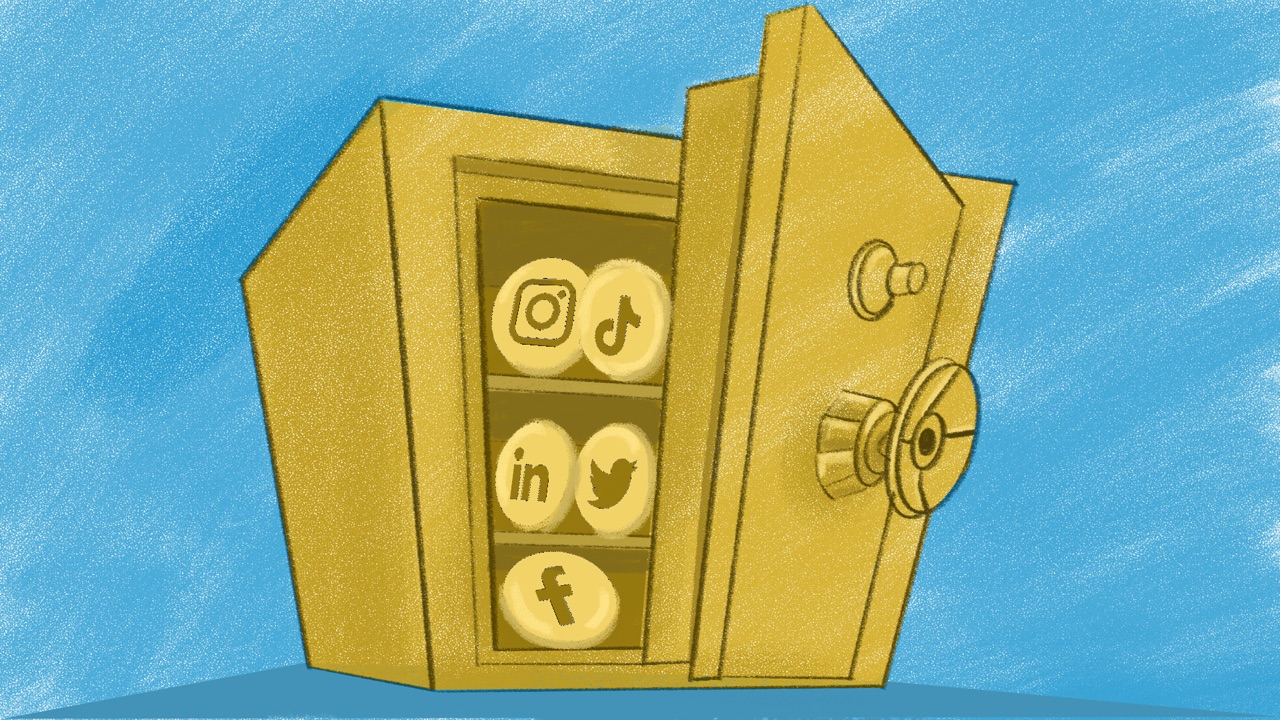
Picture Tendai, the communications officer at a land and housing rights group in Bulawayo, Zimbabwe. She runs the organisation’s Facebook Page, its Instagram and LinkedIn accounts and its WhatsApp channel, mostly from her own phone. One morning a message that seems to come from Meta says the Page has been reported and will be removed unless she confirms her login. She nearly taps the link. Then she wonders: if she had, could anyone else have got the Page back?
This guide is about keeping control of the accounts your organisation speaks through: who can get into them, how each one is protected and what to do when someone comes after them.
What’s at stake
Your organisation’s accounts speak in its name. Whoever takes one over can post as you, message your supporters and lock you out. From inside one admin’s account, an attacker can remove the other admins, delete the Page or use it to trick the rest of the team (Access Now).
That’s what happened to a local group in Bangladesh in 2020. Attackers got into the account of one of its Facebook Page’s admins, removed the others and disabled the Page, cutting the group off from the people it served (NDI). The same network also reported activists to Facebook for made-up rule-breaking, to get their accounts and Pages taken down (Meta). In Costa Rica, a fake “Facebook” page tagged a women’s rights organisation, claimed it had been reported and linked to a fake login page. The organisation sent the link to Access Now’s helpline instead of clicking it, and both the fake page and the login page were taken down (Access Now).
Most small organisations depend on Facebook, Instagram, WhatsApp and LinkedIn, then TikTok and YouTube, so this guide starts there. The same ideas work on any platform.
Who has access, and with what rights
Admin access is the power to manage an account itself, not just post from it: to change its settings and decide who else can use it.
Give each person who manages an account their own access, through their own login, instead of sharing one password (Access Now). Then you can see who did what, and remove one person without changing the password for everyone.
- Facebook: people can manage a Page with full control, with partial control or with task access through Meta’s business tools. Full control is the most anyone can have: it lets a person give access to others, remove anyone (you included) and delete the Page (Meta). Give full control to two people you trust, never just one, and less to everyone else (Access Now; SIIRF). Never let it drop to nobody: Facebook disables a Page that has no one with full control and schedules it for deletion (Meta).
- LinkedIn: a super admin can add and remove any admin and deactivate the Page. A content admin can post and manage the Page’s content, and an analyst can only see how the Page is doing (LinkedIn). Make two people super admins, and give content admin to the people who post.
- YouTube: channel permissions let several people manage a channel at different levels without the Google Account’s password, which YouTube itself says is safer than sharing it (YouTube).
Where a platform has no way to give people their own access, keep the login in a shared vault rather than in a chat. Shared accounts explains how.
Some groups manage their Page from an account used for nothing else: no personal posts, no friends and its privacy settings hiding everything, so the manager’s personal life stays out of it (Access Now). Facebook can remove an account that doesn’t use the name its owner goes by, so treat one like that as replaceable and keep a second admin (Security in a Box).
Protect every account that has access
- Turn on two-factor for everyone with access. Use a security key or an authenticator app rather than text messages, and save the backup codes somewhere safe (Security in a Box). If every account in the Bangladesh case had used two-factor, NDI notes, the attack would have been much harder (NDI). Two-factor authentication explains the kinds.
- Check the recovery email and phone number. Make sure they’re current and belong to the organisation, or to someone who still works with you. Attackers change them so they can take the account back later (Security in a Box). Protect the email account linked to the Page too (Access Now).
- Look at where the account is signed in. Run the platform’s security checkup, and look over its list of recent logins for anything you don’t recognise (Security in a Box; Access Now).
- Don’t trust messages “from Meta”. A message that claims to come from Facebook, Instagram or Meta can be phishing, sent to trick you into handing over access, like the one in Costa Rica. Don’t click; check in the account’s own settings whether the platform really wrote to you (Security in a Box). Phishing has more on the signs.
- Accept extra protection when it’s offered. Facebook and Instagram invite some particularly visible accounts to join Advanced Protection. If you see the prompt, enrol: Instagram may lock out an account that doesn’t sign up in time (Security in a Box).
- Agree who steps in. If the person who runs an account is detained, unwell or away, someone else needs to be able to manage it. If a colleague is arrested, Access Now’s helpline or Front Line Defenders can help you work with the platform to secure their account (Security in a Box).
- Keep a copy. Download the account’s data now and then and look at what you get, so a suspension doesn’t take years of posts with it (Security in a Box).
The people behind the accounts
Whoever runs your accounts can be targeted through their personal profiles (Access Now). Help them set their own accounts so they decide who can see their posts, who can message them and who can find them by search (Access Now). On Facebook, the Privacy Checkup’s section on how people can find you covers most of this, including who can look you up by phone number or email address (Security in a Box). Doxxing shows how to check what someone could find, and Online harassment and abuse covers what to do when abuse starts.
Fake pages and false reports
Fake pages and profiles that pose as your organisation or your staff can trick supporters or spread lies in your name. Social engineering explains this kind of impersonation. When you find one:
- Save copies first. Take screenshots and note the links and account names before you report or block anything (Digital First Aid Kit; SIIRF).
- Warn people from an account you control. A calm, factual post on your official channels tells supporters which account is really yours (SIIRF).
- Report it as impersonation. Use the platform’s own reporting route (Security in a Box). Keep the report numbers and replies (SIIRF).
- Ask a helpline if the platform doesn’t act. Access Now’s helpline and Front Line Defenders can take it up with the platform for human rights defenders at risk (Security in a Box).
Attackers also report real accounts in large numbers, for rules they never broke, to get them suspended (Digital First Aid Kit; Meta). Online harassment and abuse calls these fake abuse reports. Human rights defenders have had accounts shut down after being reported by governments, police or people who disagreed with them (Security in a Box). If an account is locked, restricted or disabled and you believe it’s a mistake, use the appeal route in the platform’s message (Digital First Aid Kit). If the appeal goes nowhere, ask Access Now’s Digital Security Helpline to take it up with the platform (Security in a Box).
Bringing your team with you
- List every account your organisation speaks through. For each, note who has access, with what rights, and where its recovery email and phone number point (SIIRF). Keep the list somewhere safe, since it maps the ways in.
- Give people their own access. Do it wherever the platform allows, and move the logins that can’t be split into a shared vault (Shared accounts).
- Sit with each person who has access. Turn on two-factor and save the backup codes together, in one sitting.
- Agree house rules. Decide who posts, who answers messages, who to tell when an account behaves strangely and who steps in when the main person can’t. Add them to your security policies.
- Make it part of joining and leaving. Remove someone’s access on the day they leave or change role, volunteers included (SIIRF).
- Check every three months. Compare who has access with who still works with you, and make sure two-factor is on for all of them. Checklists and audits has the rest of the quarterly check.
If it’s already happened
- Someone else is in an account: follow Account taken over. On a Facebook Page, another admin with full control can add you back, which is one more reason to have two.
- An account was suspended after a wave of reports: appeal through the platform’s message, and ask a helpline if the appeal stalls.
- A fake page is posing as you: save copies, warn people and report it. If it’s part of a wider campaign of lies, whoever leads the response can follow SIIRF’s Disinformation & Fakes playbook.
Teach it to your team
A 30-minute session with everyone who has access to your accounts.
- Prepare: bring your list of accounts, with who has access to each and with what rights. Ask everyone to bring the phone they use for the accounts.
- Exercise: open each account’s access settings together and check who has full control or super admin, and agree any changes. Then describe a message saying your Page has been reported and will be removed unless someone confirms their login, and ask what each person would do.
- Three questions: Who has full control of our Facebook Page? A message from “Meta” says our Page will be removed unless you log in: what do you do? If the person who runs our accounts were away for a month, who would post for us?
- Afterwards: fix what the check found within the week, help anyone with two-factor one to one and keep answering questions in the team chat.
More in Account Security
Password management
Getting the whole team onto a password manager, checking whether your logins have leaked in a data breach, and handling account recovery safely.
Two-factor authentication
Adding a second step to your logins, so a stolen password alone isn't enough to get in.
Shared accounts
Logins several people use, like the organisation's social media or a fundraising platform, shared safely and taken back when someone leaves.