Deleting data safely
Getting rid of files, old devices and paper records so the information on them can't be recovered.

Achieng, a field researcher at a health rights group in Kisumu, got a new phone last year. The old one, still holding interview recordings and chats, went into an office drawer next to two laptops nobody uses any more. Now someone has suggested giving all three to a local school. Nobody knows what’s still on them, or how to make sure it’s gone.
Most groups have no set way of clearing out old devices. This guide gives you one, along with how long to keep things and how to get rid of files and paper.
Why deleting isn’t enough
When you delete a file and empty the bin, your device usually just marks the space as free. Until something new is written over it, the file can still be found with the right tools (Security in a Box; EFF). The surest protection is to keep less:
The first step to protecting sensitive information is to reduce how much of it you keep around.
Security in a Box, Front Line Defenders
How long to keep things
Retention is how long you keep each kind of information before you destroy it. For each kind on your access list, write down where it’s kept, how long you keep it and how it’s destroyed at the end (SAFETAG; SIIRF).
- Check the law. Data protection laws often say personal data mustn’t be kept longer than its purpose needs; South Africa’s, Kenya’s and Uganda’s all do.
- Watch for the moment a file can go. Sensitivity changes over a project’s life, so the end of a project, or the publication of a report, is a good time to decide what to keep (Holistic Security).
- Count every copy. A file you delete may still sit in a shared drive, an email attachment, a backup or someone’s phone (Security in a Box). Old backups keep old files, so clear them out on the same schedule (Backups).
- Chats are data too. Use disappearing messages for sensitive conversations, and before you uninstall a chat app, delete its messages first (Security in a Box).
The same habit helps before a risky journey: Travel and border crossings covers what to leave behind.
Getting rid of files
On an encrypted laptop or phone, whatever is left of a deleted file looks like nonsense to anyone without the password (EFF), which is one more reason to turn encryption on, as Phones and laptops describes. For a computer with an older spinning hard drive, Security in a Box lists tools that write over deleted files and free space (Security in a Box).
Hidden details in files
Photos, videos, PDFs and documents carry hidden details, called file metadata: when and where they were made, by whom and on what device. A photo’s location data can show where you were when you took it (Security in a Box). Before a file goes outside the organisation:
- Turn off location for the camera, so new photos don’t record where they were taken (Security in a Box).
- Remove the hidden details with a tool such as ExifCleaner on a computer or Scrambled Exif on Android (Security in a Box).
- Check the picture itself. Faces and street signs can give people and places away. Blur them with a tool on your phone, such as Signal’s blur tool, or cover them with a solid shape, since some kinds of blurring can be undone (Security in a Box).
- Remember the originals. Your phone may have backed them up automatically (Security in a Box).
Wiping old devices
Use the same routine for every device that leaves the organisation, whether it’s sold, given away, recycled or passed to a colleague (Security in a Box):
- Back up anything you still need, to an encrypted backup.
- Sign it out of every account, and remove it from each account’s list of devices.
- Take out the SIM card, memory cards and any USB stick.
- Check that encryption is on. Most Android phones from Android 10 on are encrypted by default, and iPhones are once a passcode is set (Security in a Box). On a laptop, turn on full-disk encryption if it isn’t on already, as Phones and laptops describes.
- Reset it to factory settings, following the maker’s instructions; Security in a Box links them for each system.
- Keep the drive, or destroy it, if it held very sensitive information.
A factory reset returns a device to the state it left the factory in, erasing your accounts, files and settings. On its own, it can’t be relied on: phones, and most computers bought after about 2015, use solid-state drives that may not fully erase (EFF; Security in a Box). Encryption is what makes the reset safe, because what’s left behind is scrambled (EFF). That’s why the encryption check comes before the reset, and why it’s best to encrypt a device from the day you get it. USB sticks and memory cards have the same problem, so encrypt them from the start too.
Older laptops with spinning hard drives can be wiped completely, but it takes a tool that writes over the whole drive, and it’s slow and technical: ask someone you trust who knows the tools (Security in a Box). If a drive held very sensitive information, destroy it as well, with a drill or nails through it. Don’t burn it, pour acid on it or put it in a microwave. When you give a computer away, keep its drive if you can (Security in a Box).
Devices coming in need care too: have someone you trust wipe a second-hand or donated device and check it for harmful software before anyone uses it (Security in a Box).
Paper
Shred printed documents as soon as you no longer need them, and keep the paper you still need in a locked drawer or cabinet (Access Now).
Bringing your team with you
- Agree how long you keep each kind of information, and add it to your access list (SAFETAG).
- Try the routine on one old device first, with someone who knows the system, before you clear the drawer.
- Walk the team through it in a short session, using an old phone, and keep the routine on one page where people can find it.
- Help one to one with each device that’s leaving. It takes time, and an older laptop may need outside help.
- Keep a chat for questions. “Can I delete this?” deserves a quick answer.
- When someone leaves, their devices come back, their files are handed over and the devices go through the routine before anyone else uses them (Who has access).
- Look in the drawer every three months for devices waiting to be wiped, and put a yearly clear-out of old files, chats and paper in the calendar (Checklists and audits).
If it’s already happened
A device went missing before it was wiped. Protect the accounts on it first, with Device lost or seized. If the authorities took it, get legal advice before erasing it remotely (SIIRF).
A file went out with someone’s location or other details in it. Ask whoever received it to delete it, and take it down wherever you posted it (SIIRF). If it puts someone at risk, see Details posted online.
During any incident, don’t delete or wipe in a rush. Messages, files and devices may be evidence you need (SIIRF), and your incident response plan says what to keep.
Teach it to your team
This takes about 20 minutes, with phones out.
- Prepare: find where your own phone’s photo app shows a picture’s details, so you can show others.
- Exercise: everyone takes a photo, opens its details and looks for the location. Then turn off location for the camera together, take another photo and check again. End by picking one old device in the office to take through the wiping routine.
- Three questions: Why isn’t emptying the bin enough? What should you check before a factory reset? What can a photo give away besides what’s in the picture?
- Afterwards: help anyone who couldn’t find the setting, one to one, and keep answering questions in the team chat.
More in Data Security
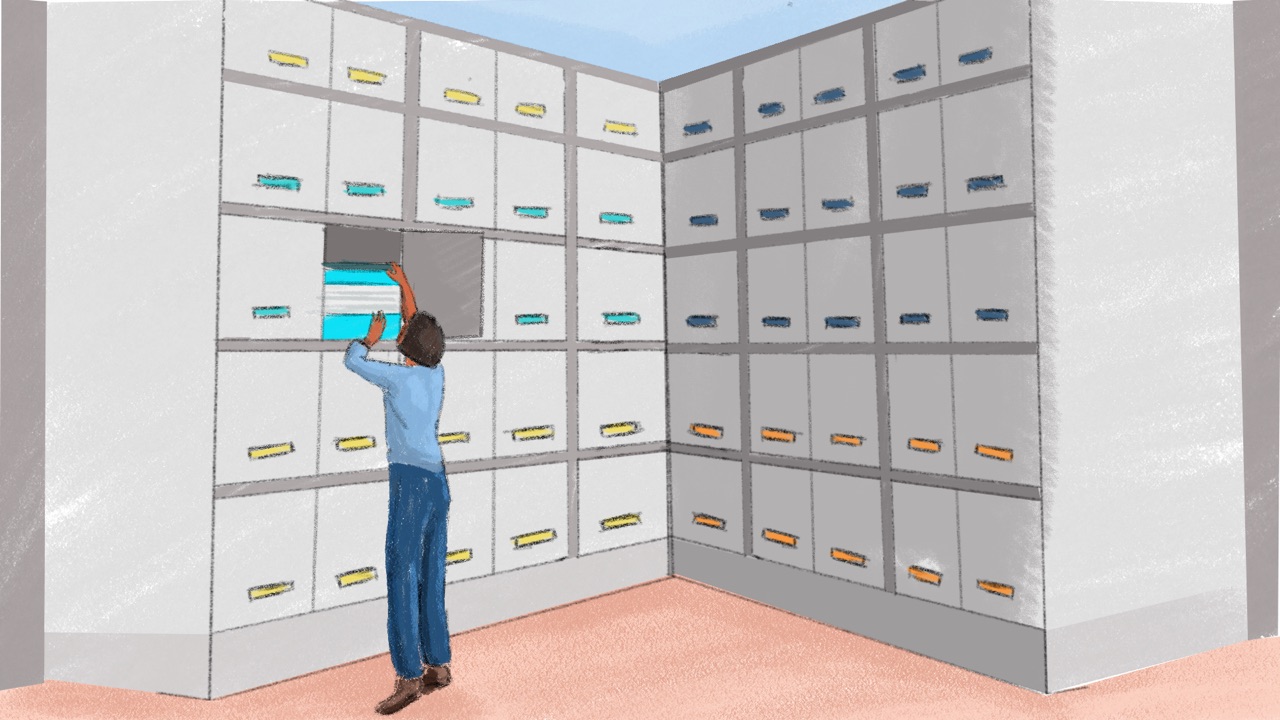
Backups
Keeping copies of your files so a stolen laptop, a broken drive or ransomware doesn't wipe out years of work.

Sharing files and cloud storage
Choosing where files live, sharing documents safely, and what changes when your data sits on someone else's servers.
Who has access
Sorting your information by how sensitive it is, and deciding who should see what, from someone's first day to their last.